
Can you send text messages from your laptop or desktop computer?
Is it possible to use your laptop to send text messages from your phone account?
While we can send WhatsApp and Facebook messenger messages from a desktop or laptop for a long time, sending SMS and MMS from the desktop is uncommon and, in the past, would require more than just a web browser to make that happen.
RCS
Google has updated their messages app to include RCS, a feature worth enabling. The RCS is googles attempt at the next generation of SMS and MMS messages, giving the user a much richer messaging experience integrated with SMS and MMS. This is ideal for those who want more from the messages, similar to WhatsApp and Messenger but still need to contact these friends or contacts who can only SMS. It gives you the best of both worlds. A fallback SMS/MMS when devices are incompatible, or data coverage is missing.
When RCS is enabled for your phone, you can send encrypted RCS messages to other contacts. SMS and MMS stay unencrypted.
Send Text Messages from Laptop
A little-known feature of RCS can link your laptop to the same RCS account on your phone. You can type on your computer and send RCS, SMS and MMS messages as if they came from your phone. It doesn’t matter which operating system your computer uses because the pairing and usage are done in the browser.
To pair RCS Chats
Time needed: 1 minute
To pair a computer with a phone for desktop RCS messages
- Open Messages app
Tap the Google Message app on your phone screen
- Tap the 3-bar ‘Burger menu.’
The Burger Menu will expand to show the hidden options
- Tap ‘Device Paring’
The ‘Device Paring’ screen will allow you to pair a browser with your phone.
- Open a web browser on your computer
On the computer, you want to send messages from, open the web browser.
- Visit the pairing website
Visit: https://messages.google.com/web
- On your phone, tap the QR code button
Tap the QR code scanner button on the messages app
- Scan the QR code showing on the browser screen.
Use the phone to scan the large QR code on your computer screen
- Pairing should be complete
The phone and computer should now be paired for messages
Device Pairing
The device Pairing screen in the Messages app will now show the paired laptop or desktop browser in the ‘Paored Devices’ list. You can unpair or pair more browsers on this screen.
The computer screen has the option to store the pairing or not save the pairing. If you choose not to save the pairing, you must pair again, following the steps above to make the connection.
With your browser paired to your phone’s RCS account, you can now type messages on your desktop and send them as if they came from your phone. If you need bigger keys, a larger screen, only have the information on your computer or have a damaged phone screen, this trick can help you stay in communication with your contacts.
Privacy
The RCS chat messages are encrypted end-to-end, but this doesn’t help if you leave your browser paired to the phone when your messages can be read. If you don’t want your messages read by anyone with access to your computer, it is important to unpair the device when you are not using it. Re-pairing is a simple process, so if you prioritise your message privacy, unpair the messages app on your browser or your phone.
Computer
To unpair your messages on your computer, tap the three dots menu in the browser and choose ‘Unpair’ from the menu.
Phone
To unpair from the phone, open the app, tap the 3-bar burger, choose ‘device pairing’ and tap the x next to the session you want to unpair.
You must use the steps above to pair the messaging app to your computer.
Multiple Pairs
It is possible to have multiple message pairings on many browser windows, but only one window will be active at any time.
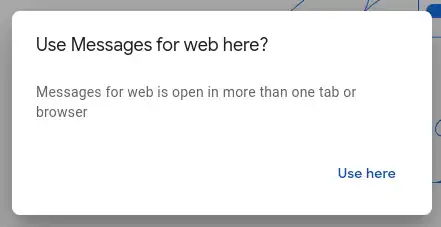
You can easily switch between the active session on your computer by tapping the ‘use here’ button.
Leave a Reply